
Background
Retaining historical data loaded from CSV files is likely to be the start point for most users.
Longer term Cointracking users will have loaded data via the CSV, then manually updated their local currency value of older KAU/KAG records where they precede the available automated pricing (coinmarketcap listing).
These users will not want to start afresh, as it would mean repeating the manual updates of these older records after importing them via the API.
Newer users may start with the CSV method and subsequently move on to the API method.
If their oldest data is after the automated pricing, then it would be an option for them to start afresh, but it's possible that they've made other manual changes to the data in CT eg classifying some Withdrawals as Spend or Deposits as Income.
So, I think it's reasonable to assume that there will be many that will want to use their CSV imports as the base and then progress to using the API.
Preventing the loading of duplicate records
The API method generates a unique Trade ID that prevents a subsequent API load for the same date range from loading the same Kinesis transaction and therefore creating a duplicate.
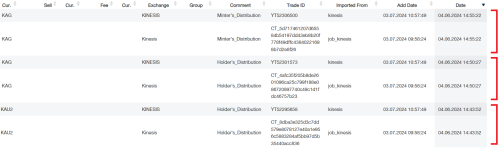
This works well. However, the same format of Trade ID's will not have been created in Cointracking by the historical loading of CSV files, so duplicates between API and CSV methods will not be prevented based on Trade ID's .
Here is the Kinesis help article showing how to link to the Cointracking API.
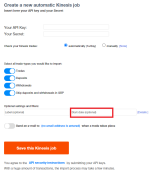
When creating the API job, you have the option to set a start date for the API to import data from.
Ensure that you fill this in to avoid creating duplicates of your historical data from the CSV files.
It's important to note that the format of the date is dd.mm.yyyy hh:mm:ss
If you enter eg 21/01/2024, it will appear to be accepted, but won't actually be displayed in the start date field and will have no effect on setting the start point for the API import, so you'll end up with lots of duplicates.
You need to use . between the day, month and year.
Retaining historical data loaded from CSV files is likely to be the start point for most users.
Longer term Cointracking users will have loaded data via the CSV, then manually updated their local currency value of older KAU/KAG records where they precede the available automated pricing (coinmarketcap listing).
These users will not want to start afresh, as it would mean repeating the manual updates of these older records after importing them via the API.
Newer users may start with the CSV method and subsequently move on to the API method.
If their oldest data is after the automated pricing, then it would be an option for them to start afresh, but it's possible that they've made other manual changes to the data in CT eg classifying some Withdrawals as Spend or Deposits as Income.
So, I think it's reasonable to assume that there will be many that will want to use their CSV imports as the base and then progress to using the API.
Preventing the loading of duplicate records
The API method generates a unique Trade ID that prevents a subsequent API load for the same date range from loading the same Kinesis transaction and therefore creating a duplicate.
This works well. However, the same format of Trade ID's will not have been created in Cointracking by the historical loading of CSV files, so duplicates between API and CSV methods will not be prevented based on Trade ID's .
Here is the Kinesis help article showing how to link to the Cointracking API.
When creating the API job, you have the option to set a start date for the API to import data from.
Ensure that you fill this in to avoid creating duplicates of your historical data from the CSV files.
It's important to note that the format of the date is dd.mm.yyyy hh:mm:ss
If you enter eg 21/01/2024, it will appear to be accepted, but won't actually be displayed in the start date field and will have no effect on setting the start point for the API import, so you'll end up with lots of duplicates.
You need to use . between the day, month and year.
Last edited: